Views
Graph Core provides multiple ways to visualize and interact with your data.
Cards View
Shows nodes as nested cards with visual hierarchy.
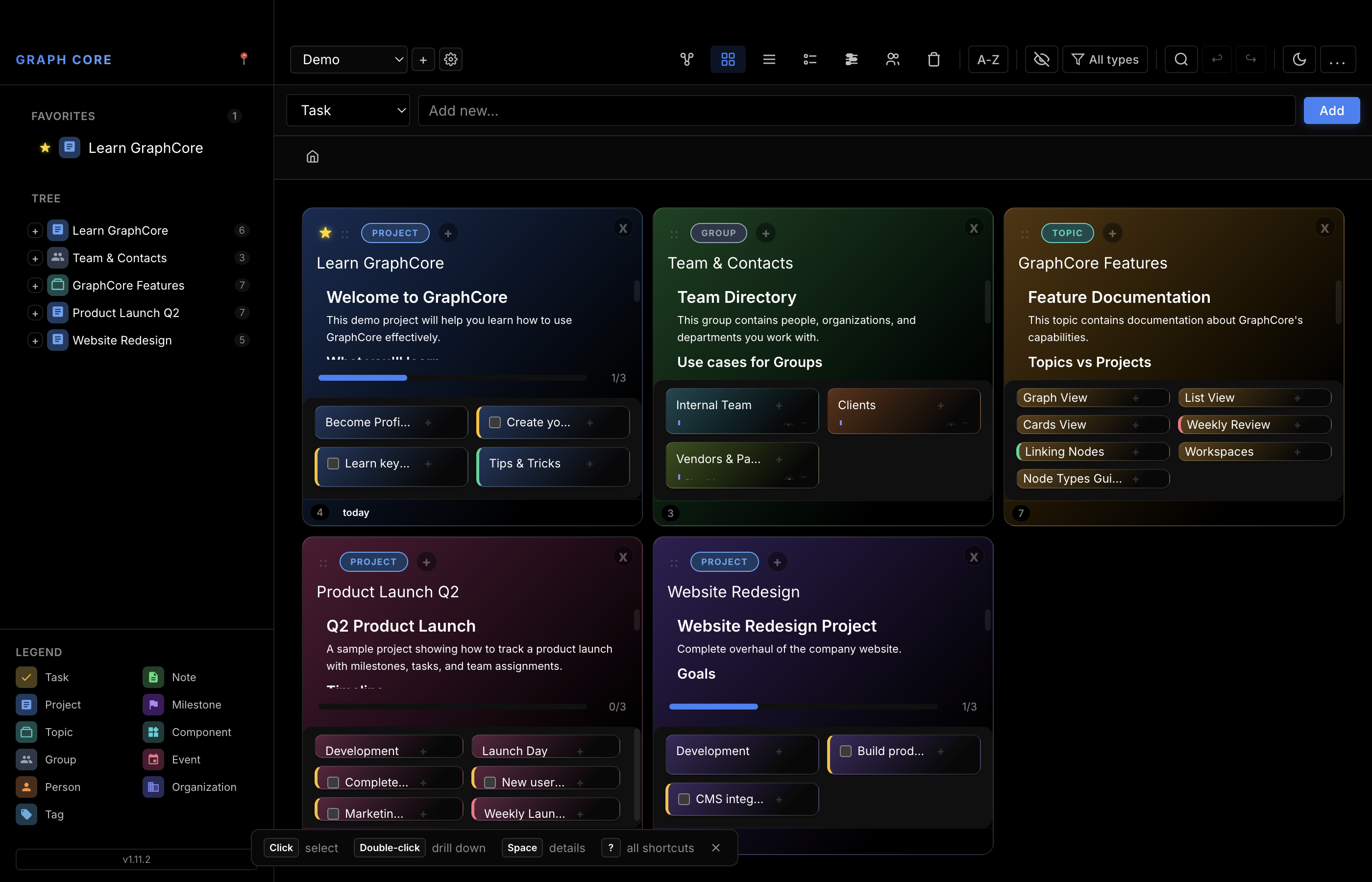
Layout Rules:
- Cards use all available space
- When a card has both notes and children: 50/50 split
- Small cards: children become vertical list
- Large cards: children display as grid
Features:
- Nested card display up to 4 levels deep
- Inline notes editing: click a card's notes to edit them in place. A card with no notes yet shows a muted "Add notes..." placeholder in the same spot, so there is always something to click - without it an empty card offers no target and its notes cannot be started at all. The placeholder is not shown on
card-xs, where notes are hidden entirely, or on nodes whose notes are marked sensitive. - Color inheritance from parent nodes
- Hover tooltips for quick preview
- Progress bars showing child completion percentage
- Due date badges with urgency indicators
- Drag and drop reordering
Card Size Classes
Cards automatically receive size classes based on available space:
| Class | Title Font | Notes | Features Hidden |
|---|---|---|---|
card-xl |
22px | 250px max | None |
card-lg |
18px | 180px max | None |
card-md |
16px | 150px max | None |
card-sm |
14px | Compact | Type text, tags, some contact details |
card-xs |
12px | Hidden | Drag handle, tags, notes preview |
Smaller cards progressively hide less important information to maintain readability.
Grandchildren Display
Cards show up to two levels of descendants:
- Child nodes display as nested cards or list items
- Grandchildren appear as a simple list within each child card
- Grandchildren show type icons, titles, and completion checkboxes
- Click a grandchild to select it; double-click to navigate into it
Best for: Visual overview, dashboard-style browsing
Graph View
Force-directed graph visualization using Cytoscape.js.
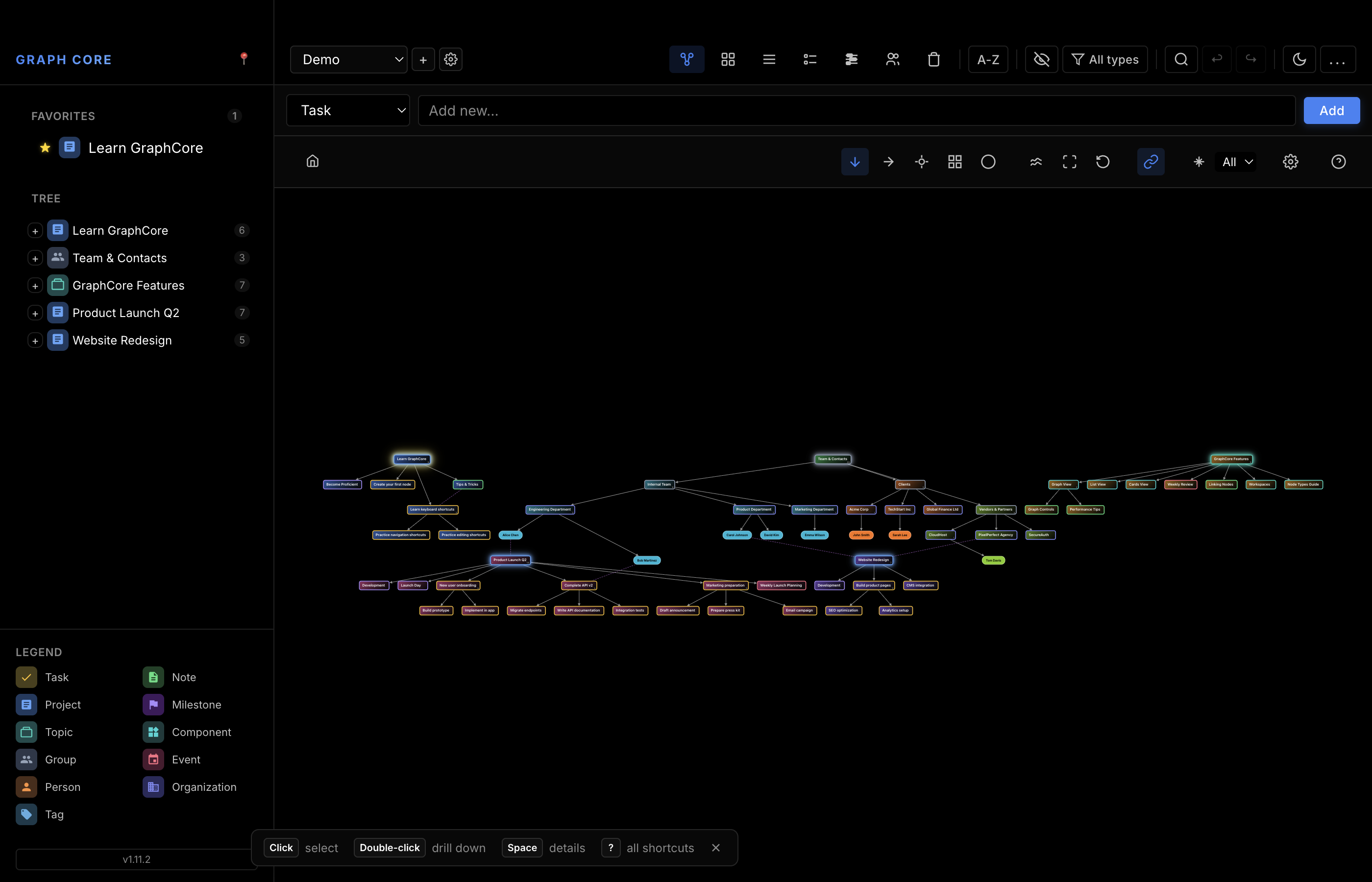
Layout Modes
| Layout | Description |
|---|---|
| Tree | Vertical hierarchical layout (top to bottom) |
| Horizontal | Left-to-right hierarchical layout |
| Radial | Circular layout with physics simulation |
| Grid | Grid-based positioning |
| Circle | Nodes arranged in a circle |
Change layouts using the layout selector in the Graph toolbar.
Physics Settings
The radial layout uses a physics simulation (cose-bilkent algorithm) with configurable parameters. Access these via the settings panel in Graph view:
| Parameter | Default | Range | Description |
|---|---|---|---|
| Node Repulsion | 5000 | 100-10000 | Force pushing nodes apart |
| Edge Length | 100 | 20-1000 | Ideal distance between connected nodes |
| Elasticity | 0.5 | 0.1-1.5 | Edge tension/stiffness |
| Gravity | 10000 | 0-50000 | Pull toward graph center |
| Iterations | 2500 | 1000-500000 | Simulation steps (higher = smoother) |
Click "Apply" after adjusting sliders to restart the layout with new parameters. Settings are saved per-workspace.
Graph Controls
| Control | Single Click | Double Click |
|---|---|---|
| Relax Layout | Run one physics pass | Toggle continuous mode |
| Fit to View | Fit once | Toggle auto-fit mode |
| Reset Layout | Randomize positions | - |
Relax uses a different engine to the radial layout. Radial runs cose-bilkent, which has a true repulsion force. Relax and continuous relax run cola, which has none: its only spacing controls are nodeSpacing, a padding added to each node's bounding box for overlap avoidance, and edgeLength.
Padding alone spreads nodes vertically and almost not at all horizontally. Nodes are far wider than they are tall - a node box is 120-250px wide against a title row of roughly 40px - so the padded boxes overlap vertically long before they overlap horizontally, and only the vertical overlaps are ever resolved. The Node Repulsion setting therefore scales edgeLength as well, which is what moves nodes apart sideways. At the default repulsion the edge length is exactly what the Edge Length slider says; above it, edges lengthen in proportion.
Continuous Relax Mode (Lock Relax):
When locked, the physics simulation runs continuously, keeping nodes dynamically arranged. Useful for exploring large graphs where manual positioning would be tedious.
Auto-Fit Mode (Lock Fit):
When locked, the view automatically adjusts zoom and pan every 300ms to keep all nodes visible. Useful when nodes are being added or moved frequently.
Node Position Persistence
Node positions are automatically saved to browser storage:
- Positions persist per-workspace and per-parent context
- Key format:
graph-positions-{workspace}-{parentId} - Invalid positions (corrupted or out of bounds) are filtered automatically
- Positions survive page reloads within the same browser
Display Options
| Option | Description |
|---|---|
| Show External Links | Display non-parent-child relationships (links) |
| Show Root Node | Toggle parent node visibility |
| Type Filtering | Show/hide specific node types |
| Show Type Borders | Colored borders indicating node type |
Interactions
| Action | Result |
|---|---|
| Click node | Select |
| Double-click node | Navigate into |
| Drag node | Reposition (position saved) |
| Option+drag | Create link to another node |
| Shift+click | Multi-select toggle |
| Shift+drag | Lasso select multiple nodes |
| Scroll wheel | Zoom in/out |
| Drag background | Pan view |
| Cmd/Ctrl+click node | Add child node |
| Cmd/Ctrl+click edge | Insert node between |
| Opt+Cmd/Ctrl+click edge | Delete edge |
Insert Between Nodes
Insert a new node in the middle of an existing relationship:
- Hold
Cmd/Ctrland click on an edge - Enter the new node's title in the modal
- The new node is inserted between the connected nodes
For parent-child edges:
For link edges:
Wrap with Parent
Create a new parent for an existing node:
- Select a node and open its edit modal
- Click "Wrap with Parent" in the modal footer
- Enter a title for the new parent
- The current node becomes a child of the new parent
The new parent is positioned near the child in the graph.
Best for: Seeing relationships, mind mapping, visual organization
Table View
The hierarchical table: a spreadsheet-like view with sortable columns that also carries the tree structure, drawn with the prefixes described below. It is the view switcher's "Table" entry and is identified as tree in code and in view settings.
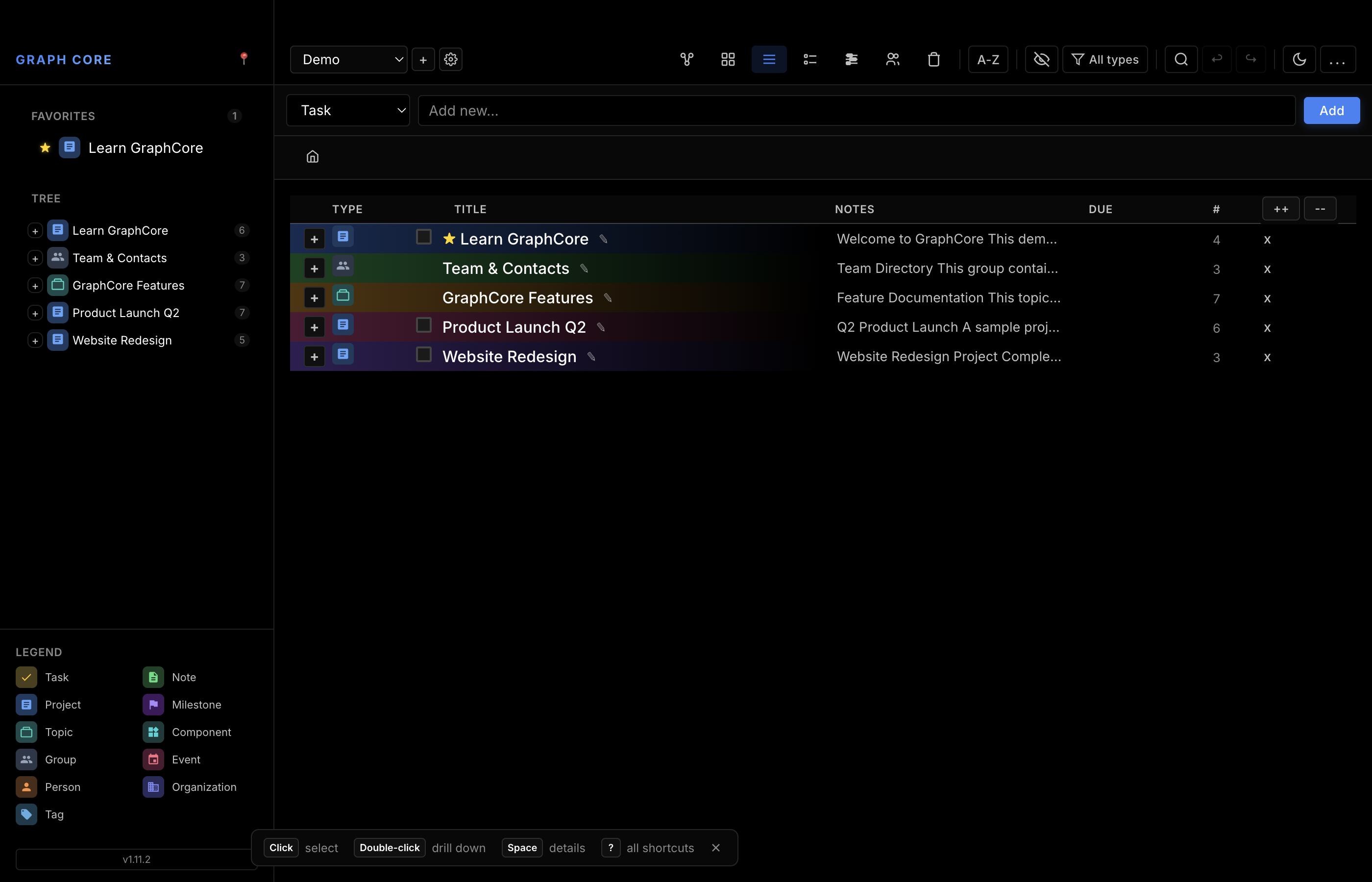
Columns:
- Title
- Type
- Status (completion)
- Due date, Start date, End date
- Importance
- Tags
Features:
- Click headers to sort
- Expand/collapse nodes to walk the hierarchy
- Drag to reorder within a parent
- Inline title editing (double-click)
- Multi-select with Ctrl/Cmd+Click, and bulk selection with checkboxes
- Completion checkboxes for tasks and projects
- Direct cell editing
Tree Prefix Visualization
The table displays hierarchy using Unicode box-drawing characters:
Characters used:
- ├─ Junction for non-last children
- └─ Corner for last child
- │ Vertical continuation line
This provides clear visual hierarchy while maintaining the spreadsheet format.
Column Resize
Drag column borders to resize. Widths are persisted to browser storage:
- Storage key:
graphcore-table-colwidths - Widths survive page reloads
- Default widths are restored if storage is cleared
Default column widths:
| Column | Width |
|---|---|
| Title | 300px |
| Notes | 200px |
| Due Date | 90px |
| Type | 60px |
Best for: Browsing hierarchies, organizing projects, data management, bulk operations
Timeline View
Displays nodes with dates on a horizontal timeline.
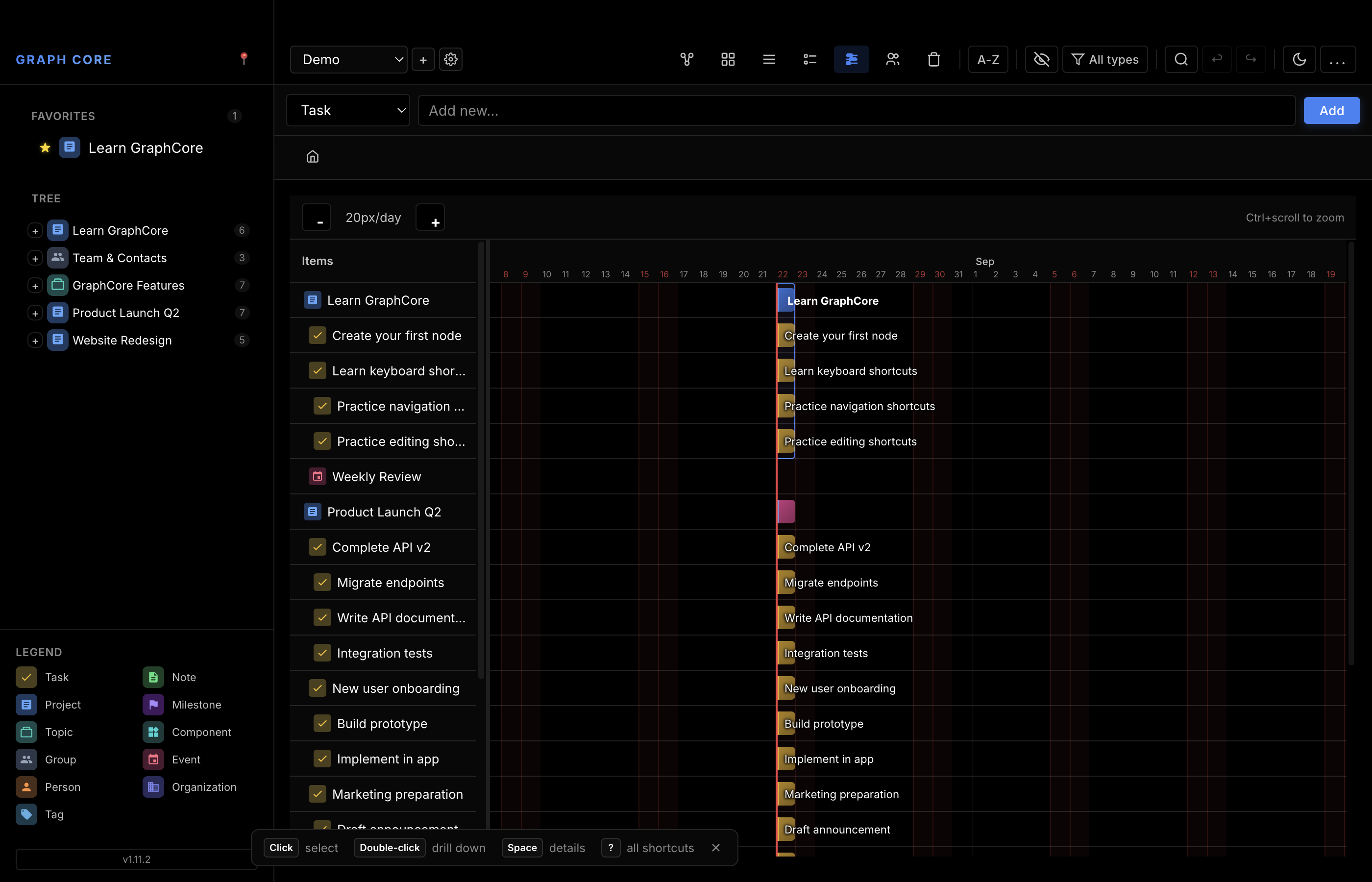
Features:
- Zoom in/out with Ctrl/Cmd+scroll (centered on cursor)
- Drag bars to move dates
- Resize handles for start/end dates
- Draggable labels column
- Weekend shading
- Today marker
- Multi-day event support
Date Behavior:
- Uses due_date, start_date, or end_date fields
- Nodes without end_date stretch to today
- Project boxes span the range of child tasks
- Events display as date-range bars
- Groups render as vertical bars spanning child rows
Best for: Project planning, scheduling
Tasks View
Filtered view showing task-type nodes from the current container and its descendants.
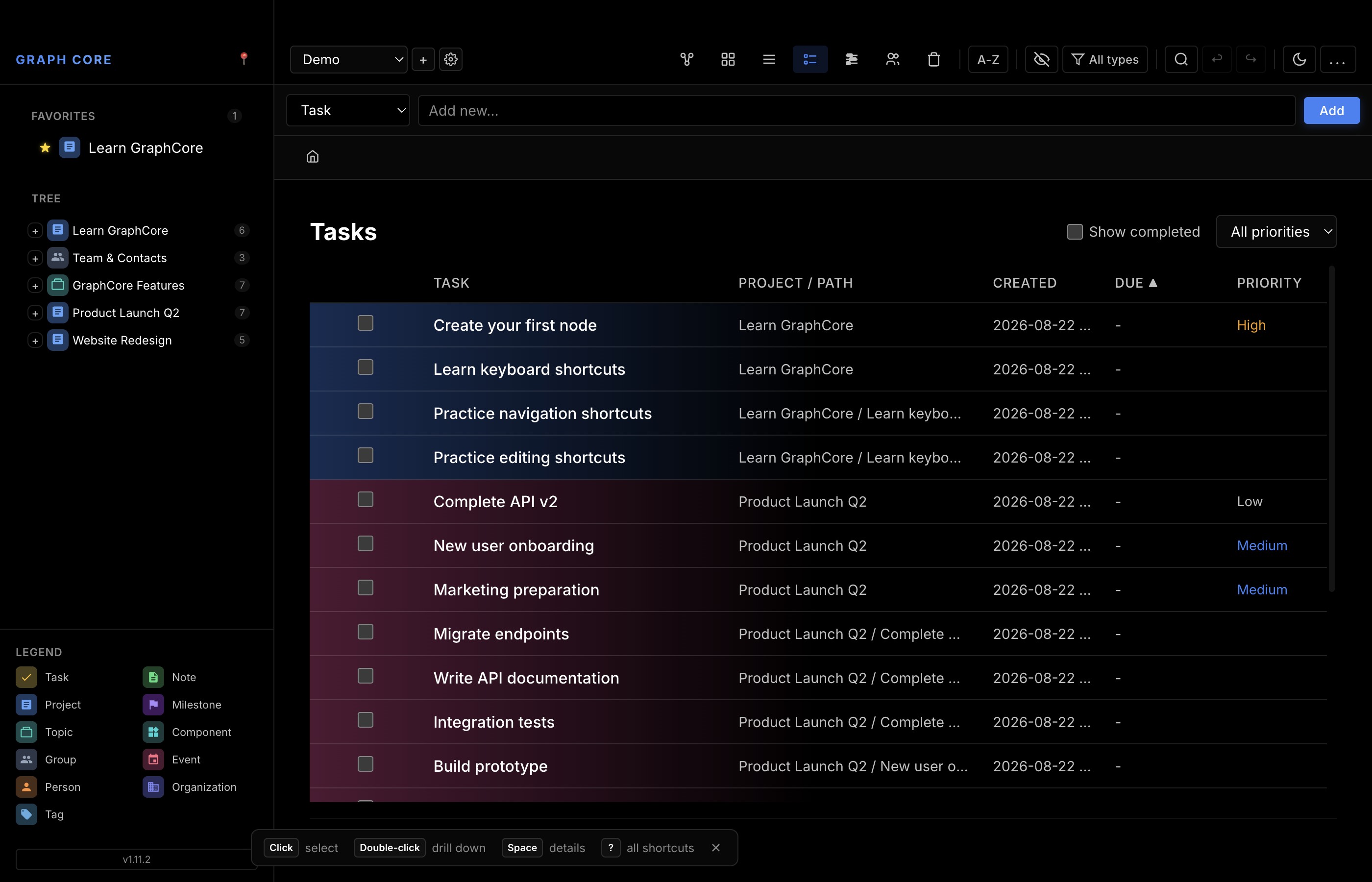
Grouping:
- Overdue
- Today
- This Week
- Later
- No Date
- Completed (when visible)
Sorting Options:
| Sort | Description |
|---|---|
| Due Date | By deadline proximity |
| Importance | Critical to Trivial |
| Created | Most recent first |
| Title | Alphabetical |
Features:
- One-click completion toggle
- Urgency indicators with countdown
- Filter by importance level (1-5)
- Show/hide completed tasks
- Path breadcrumbs showing ancestry
- Completion percentage for groups
Best for: Daily task management, GTD workflows
People View
Contact management for the person-type nodes of the current workspace; the list reloads when you switch workspaces.
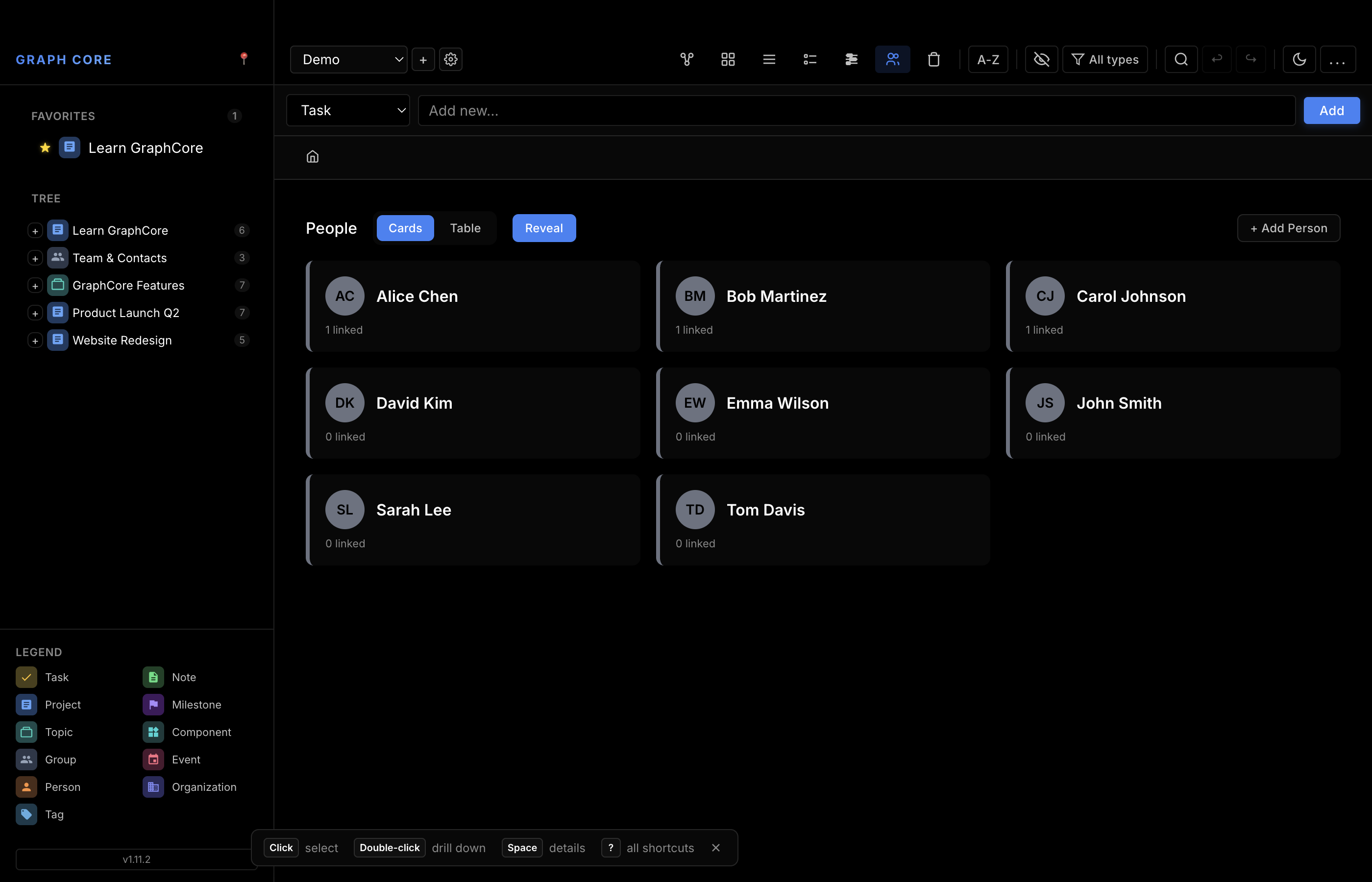
Features:
- Organization grouping and filtering
- Contact fields: email, phone, role, organization, website, address
- Sensitive data masking (email, phone)
- Organization linking with autocomplete
- Color assignment (random or inherited from organization)
- Sorting by title or custom fields
Best for: Contact management, team organization
Trash View
Browse and manage deleted items.
Features:
- View all trashed nodes
- Restore nodes to their original location
- Permanently delete items
- Empty all trash at once
Access: Via the Trash item in the sidebar navigation.
View-Specific Settings
Access via the settings panel:
| Setting | Affects |
|---|---|
| Detail threshold | Graph view node limit before details are abbreviated |
| Max depth | Graph view hierarchy depth (0 = all levels, stored per workspace) |
| Notes preview | Characters of note text shown on a graph node |
| Hide completed | All views (toolbar toggle) |
| Sort alphabetically | Cards, Graph views (toolbar toggle) |